
How to Inspect Power Lines with Air 3S in Dusty Conditions
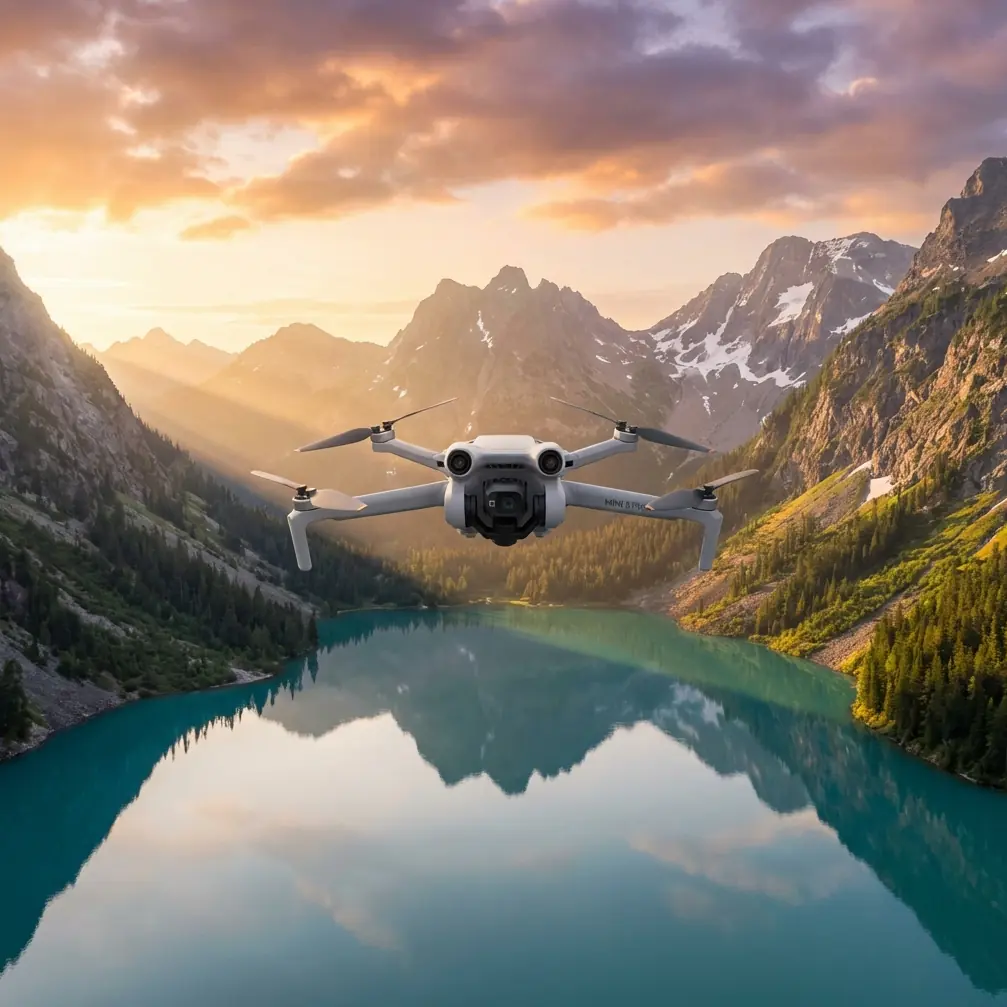
How to Inspect Power Lines with Air 3S in Dusty Conditions
META: Learn how the DJI Air 3S handles dusty power line inspections with precision obstacle avoidance and electromagnetic interference solutions for safer flights.
TL;DR
- Electromagnetic interference near power lines requires specific antenna positioning and flight mode adjustments on the Air 3S
- The 1-inch CMOS sensor captures critical infrastructure details even through dust particles and haze
- Omnidirectional obstacle avoidance prevents collisions with cables, towers, and unexpected debris
- D-Log color profile preserves maximum dynamic range for post-inspection analysis of corrosion and damage
Power line inspections in dusty environments present two critical challenges: reduced visibility and electromagnetic interference that disrupts drone communication. The Air 3S addresses both through its advanced sensor array and configurable transmission system. This guide walks you through the exact settings, flight patterns, and techniques that professional inspectors use to capture actionable infrastructure data.
Understanding Electromagnetic Interference Near Power Lines
High-voltage transmission lines generate electromagnetic fields that can disrupt GPS signals and controller communication. The Air 3S uses DJI's O4 transmission system, which operates on 2.4GHz and 5.8GHz frequencies with automatic switching capabilities.
When flying within 30 meters of active power lines, interference typically manifests as:
- Intermittent signal warnings on your controller
- GPS position drift or sudden altitude changes
- Delayed response to control inputs
- Video feed stuttering or temporary blackouts
Antenna Adjustment Protocol for EMI Mitigation
The physical positioning of your controller antennas directly impacts signal integrity near electromagnetic sources. Before approaching power infrastructure, adjust your setup using this method:
Step 1: Position controller antennas perpendicular to the ground, forming a "V" shape at approximately 45-degree angles.
Step 2: Keep the flat face of each antenna pointed toward the drone's expected flight path.
Step 3: Maintain line-of-sight positioning—never let transmission towers or metal structures block the direct path between controller and aircraft.
Step 4: If interference persists, rotate your entire body position 90 degrees to change the antenna orientation relative to the power lines.
Expert Insight: Professional inspectors often position themselves parallel to the power line corridor rather than perpendicular. This orientation minimizes the electromagnetic field's impact on the transmission signal while maintaining optimal visual contact with the drone.
Pre-Flight Configuration for Dusty Conditions
Dust particles affect both flight performance and image quality. Configure your Air 3S specifically for these conditions before launch.
Camera Settings for Maximum Clarity
The 1-inch sensor on the Air 3S captures significantly more light than smaller sensors, which becomes critical when dust reduces ambient illumination.
| Setting | Recommended Value | Reasoning |
|---|---|---|
| ISO | 100-400 | Minimizes noise while maintaining exposure |
| Shutter Speed | 1/500 or faster | Freezes dust particles, prevents motion blur |
| Aperture | f/4.0-f/5.6 | Balances depth of field with light gathering |
| Color Profile | D-Log | Preserves 13+ stops of dynamic range |
| White Balance | Manual 5600K | Prevents auto-adjustment from dust color cast |
| Focus Mode | Manual | Prevents hunting caused by floating particles |
Flight Mode Selection
Switch to Cine mode for power line inspections. This reduces maximum speed and smooths control inputs, preventing sudden movements that could result in cable strikes.
The Air 3S obstacle avoidance system uses omnidirectional sensors that detect objects in all directions. Near power lines, configure these settings:
- Obstacle Avoidance: Set to "Brake" rather than "Bypass"
- Obstacle Avoidance Distance: Maximum setting (15 meters)
- Return-to-Home Altitude: Set 50 meters above the highest structure in your inspection area
Pro Tip: Disable ActiveTrack and Subject tracking features during power line work. These automated systems may misidentify cables or towers as tracking subjects, causing unpredictable flight behavior near hazardous infrastructure.
Executing the Inspection Flight
Systematic flight patterns ensure complete coverage while minimizing risk. The Air 3S supports several automated flight modes that streamline this process.
Recommended Flight Pattern
Begin your inspection 100 meters from the first tower at an altitude 20 meters above the highest cable.
Phase 1: Overview Pass Fly parallel to the power line corridor at constant altitude, capturing wide-angle footage of the entire span. This establishes context and identifies areas requiring closer examination.
Phase 2: Detail Inspection Descend to 10-15 meters from specific components. Use the 3x optical zoom on the telephoto lens to capture:
- Insulator condition and contamination
- Conductor splice points
- Tower connection hardware
- Vegetation encroachment zones
Phase 3: Thermal Documentation (if equipped with thermal camera) Repeat critical sections to identify hot spots indicating resistance or failing connections.
Using Hyperlapse for Time-Efficient Documentation
The Hyperlapse feature creates compressed video sequences that document long infrastructure spans efficiently. For power line work, select Waypoint Hyperlapse mode:
- Set your first waypoint at the starting tower
- Fly to the ending tower and set the second waypoint
- Configure 2-second intervals between captures
- Set flight speed to 3 m/s for stability
This produces a smooth, compressed video showing the entire corridor while capturing individual high-resolution frames for detailed analysis.
QuickShots for Standardized Tower Documentation
Create consistent documentation across multiple towers using QuickShots in Orbit mode:
- Set the tower as your center point
- Configure radius to 25 meters
- Set orbit speed to slowest setting
- Capture one complete 360-degree rotation
This standardized approach allows direct comparison between towers and creates baseline documentation for future inspections.
Post-Processing D-Log Footage
D-Log footage appears flat and desaturated directly from the camera. This is intentional—the profile preserves maximum information for post-processing.
Color Correction Workflow
Import footage into your editing software and apply these adjustments:
- Contrast: Increase by 15-25%
- Saturation: Boost by 10-20%
- Shadows: Lift slightly to reveal cable detail
- Highlights: Reduce to recover sky detail
- Sharpening: Apply moderate sharpening to enhance wire visibility
The extended dynamic range captured in D-Log reveals corrosion, discoloration, and physical damage that would be lost in standard color profiles.
Common Mistakes to Avoid
Flying too close to active lines: Maintain minimum 10-meter clearance from energized conductors. Electromagnetic fields intensify dramatically at close range, and arc flash risk increases.
Ignoring wind conditions: Dust storms often accompany high winds. The Air 3S handles winds up to 12 m/s, but gusts near towers create unpredictable turbulence. Abort if sustained winds exceed 8 m/s.
Relying solely on obstacle avoidance: Thin cables may not register on proximity sensors. Always maintain visual contact and manual control authority near infrastructure.
Forgetting to clean sensors: Dust accumulation on obstacle avoidance sensors creates blind spots. Wipe all sensor surfaces with a microfiber cloth before each flight.
Using automatic exposure: Bright sky backgrounds cause underexposure of dark cables and towers. Lock exposure manually before approaching infrastructure.
Frequently Asked Questions
How does dust affect the Air 3S obstacle avoidance system?
Heavy dust concentration can scatter the infrared signals used by proximity sensors, potentially reducing detection range by 20-30%. The vision-based sensors maintain better performance in dusty conditions. Clean all sensor surfaces before flight and increase your manual safety margins when visibility drops below 1 kilometer.
What battery considerations apply to dusty power line inspections?
Dust particles can infiltrate battery contacts, causing resistance and reduced performance. Inspect contact points before each flight and clean with a dry brush if contamination is visible. The Air 3S provides approximately 46 minutes of flight time under optimal conditions—plan for 30-35 minutes of actual inspection time to maintain safe return margins.
Can I use the Air 3S near de-energized power lines without EMI concerns?
De-energized lines eliminate electromagnetic interference but introduce different risks. Without the characteristic hum and heat signature, these lines become harder to detect visually and may not trigger the same caution response. Treat all power infrastructure as potentially energized and maintain identical safety protocols regardless of reported status.
Mastering power line inspection with the Air 3S requires understanding both the drone's capabilities and the unique challenges of electromagnetic environments. The combination of robust obstacle avoidance, professional imaging capabilities, and reliable transmission makes this platform particularly suited for infrastructure work in demanding conditions.
Ready for your own Air 3S? Contact our team for expert consultation.